How to Switch Garage Management Software Without Retyping Every Customer
A practical, step-by-step plan for UK garages moving systems: what to bring across, what to leave behind, and how to switch without a lost day in the workshop.
16 October 2026 · Last updated 20 October 2026 · 7 min read
Most garages that stay on a system they don't like aren't staying because it's good. They're staying because the thought of retyping hundreds of customers and parts sounds like a week of unpaid weekends.
It doesn't have to be like that. Most of the data you need on day one already exists somewhere you can export it from. This guide shows what to bring across, what to leave behind, and a staged plan that keeps the workshop running while you switch.
Disclosure: we make Mechanics Hub. The plan below works whichever system you choose.
What you actually need on day one
You don't need to move every record from the last ten years before you start. You need enough to book, work and invoice today's jobs.
| Data | Where it usually lives | Bring it across? |
|---|---|---|
| Customer names, phones, emails | Accounts software (e.g. Xero) or old garage system | Yes — import on day one |
| Parts and prices | Spreadsheet, old system export, motor factor list | Yes — CSV import |
| Vehicles | Old garage system, paper cards | Add as they come in, with registration lookup |
| Old job history | Old garage system | Keep the old system read-only for look-ups |
| Open invoices | Accounts software | Leave them where they are and finish them there |
Step 1: Import your customers
If you use Xero, your customers are already there as contacts. A good garage system should be able to pull them straight in, so names, phone numbers, emails and addresses arrive without typing.
If you don't use Xero, export your customer list to a spreadsheet from your old system or accounts package and import that instead.
- Check the import skips duplicates rather than creating two of the same customer.
- Check it won't overwrite details you've already typed into the new system.
- Check customers stay linked to their accounts contact, so future invoices land on the right record.
Step 2: Bring your parts list across
Your fast-moving parts — filters, oils, pads, wiper blades, bulbs — matter most. Export what you have to a CSV file from Excel, Google Sheets, your old system or a motor factor price list, and import it.
You don't need every column perfect. A name is enough to start; part numbers, cost and retail prices and stock levels can be added as you go.
Step 3: Let vehicles build up naturally
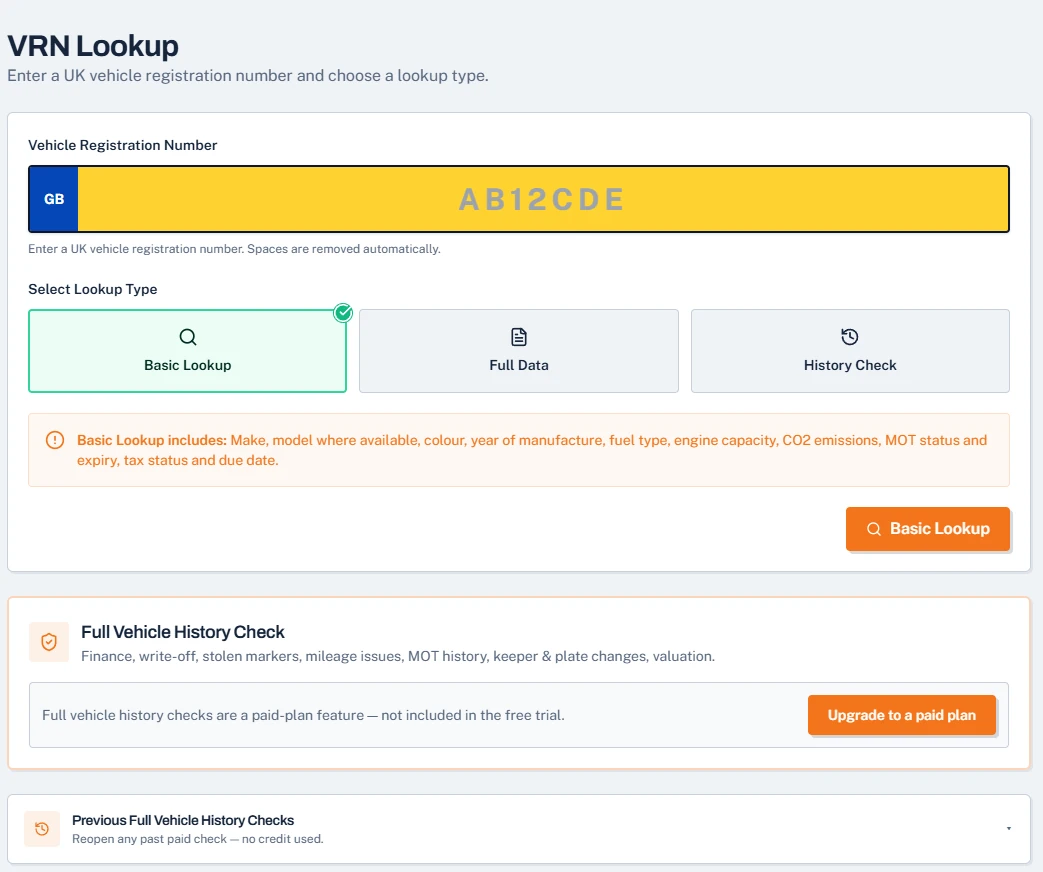
Vehicles are usually the hardest thing to export cleanly, and accounts software normally doesn't store registrations at all. The simplest approach is to add each vehicle the first time it comes in.
With a UK registration lookup, typing the plate fills in make, model, fuel and MOT due date, so it takes seconds — and MOT reminders start working from that point.
Step 4: Switch in stages, not overnight
Running both systems for a short time is far safer than a big-bang switch:
- Week 1: import customers and parts. Book new jobs in the new system; finish existing jobs in the old one.
- Week 2: move invoicing and reminders over. Check VAT and the accounts sync on a few real invoices.
- Week 3: stop booking into the old system and keep it for look-ups only.
- Paper-first team? Print job sheets for the bays while the office goes digital.
Mistakes that make switching painful
Watch out for these:
- Trying to clean ten years of data before starting — import what you have and tidy as you go.
- Re-issuing old invoices in the new system — this causes duplicates in your accounts.
- Switching on your busiest week.
- Not checking the VAT setting on the accounts sync before sending real invoices.
How Mechanics Hub handles switching
Mechanics Hub can import your customers directly from Xero in one click, or from a spreadsheet. Existing records are never overwritten, and imported customers stay linked to their Xero contact. Parts come in from a CSV file with a preview before anything is saved, and parts you already have are skipped.
Vehicles are added by registration lookup as they come in. The Workshop plan is £49 a month with unlimited technicians.
Bring your customers across today
Start a 14-day free trial, import your Xero customers and parts list, and run a real job. No card required.
Frequently asked questions
Can I import customers from Xero?
Yes. Mechanics Hub imports active Xero contacts with their names, phone numbers, emails and addresses, skips duplicates and never overwrites details you've already entered.
Will my vehicles come across from Xero?
No. Xero doesn't store vehicle registrations. Add each vehicle the first time it comes in — the registration lookup fills in make, model and MOT date.
Will importing affect my existing invoices?
No. Customer and parts imports only add or link records. Existing invoices and their totals are not changed.
How long does switching take?
Importing customers and parts takes minutes. Most garages run both systems side by side for one to three weeks before stopping the old one.
Bottom line
Switching garage software is mostly about bringing across customers and parts, then letting vehicles and history build up naturally. Do it in stages and the workshop barely notices.