Invoices typed twice
Writing the invoice in the workshop and then again in Xero wastes evening hours and creates mistakes.
Xero integration
Garage software that imports your Xero customers, syncs invoices with the right VAT rate and flags totals that don't match. Built for UK workshops.
What it handles
Run the workshop in Mechanics Hub and keep Xero as your accounts ledger, without retyping invoices.
Why it matters
Most independent garages already trust Xero for their books. The problem is the gap between the workshop and the accounts: invoices typed twice, VAT that doesn't match, and payments marked off in two places. Mechanics Hub connects that gap so the job, the invoice and Xero all tell the same story.
Writing the invoice in the workshop and then again in Xero wastes evening hours and creates mistakes.
If the tax rate in your accounts doesn't match the garage invoice, totals drift and your accountant has to untangle it.
Your customer list may already live in Xero. Re-entering hundreds of contacts by hand is enough to put anyone off switching.
How Mechanics Hub helps
✓ Import active Xero customer contacts (names, emails, phones and addresses) and link them, without creating duplicates of customers you already have.
✓ Push invoices and credit notes to Xero from the invoice page, linked to the matching Xero contact.
✓ Set the default Xero tax type once, so VAT-registered garages sync invoices with the correct VAT.
✓ If the Xero total ever differs from the garage invoice, Mechanics Hub flags it and lets you send the update again.
✓ Payments recorded in Xero and invoices voided in Xero are picked up so the workshop record stays accurate.
Mechanics Hub isn't accounting software, and it isn't trying to be. It runs the workshop and raises the invoices, then hands them to Xero, where your books, VAT returns and accountant live.
| Job | Where it happens |
|---|---|
| Bookings, job sheets and health checks | Mechanics Hub |
| Raising and sending the customer invoice | Mechanics Hub, then synced to Xero |
| Card payments on invoices | Your own Stripe account, with the payment passed to Xero for synced invoices |
| Bank reconciliation, VAT returns and payroll | Xero |
| Reports for your accountant | Xero |
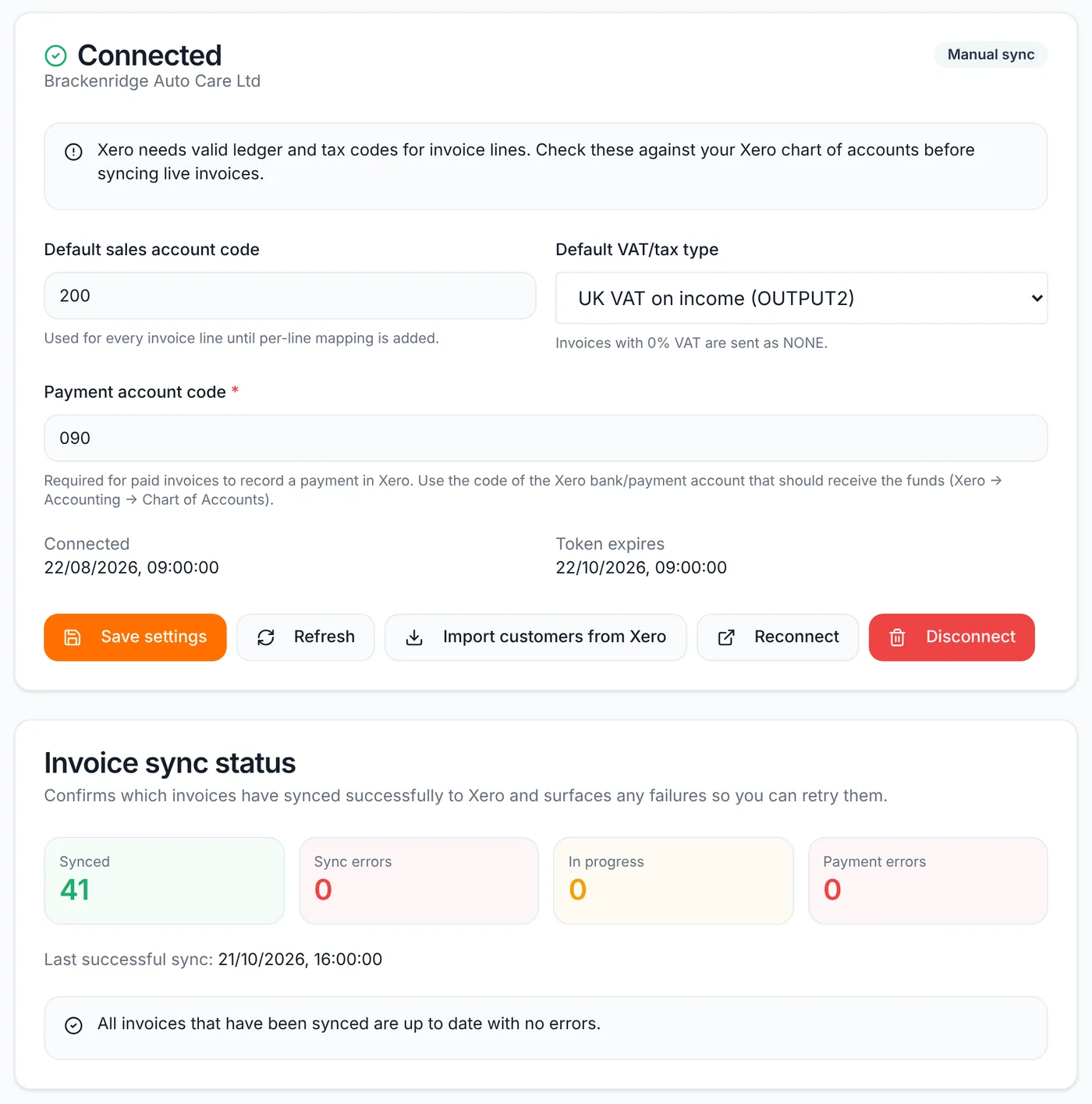
In Business Settings, open the Xero tab and choose Connect Xero. You approve access in Xero, then set three things: the default sales account code, the default VAT or tax type (for example UK VAT on income), and the payment account code that paid invoices are recorded against. Invoices at 0% VAT are sent with no tax.
Open an invoice and choose Sync to Xero. It's created in Xero as an approved invoice with Xero's own invoice number, and your Mechanics Hub invoice number is saved as the reference, so nothing clashes with your ledger. Credit notes can be synced too.
After that, use Update Xero if you edit the invoice. Payments you record in Mechanics Hub go to Xero, and invoices voided, edited or paid directly in Xero are picked up automatically.
On the Xero tab, import your active Xero contacts with their names, emails, phone numbers and addresses. Customers you already have with the same email or name are linked rather than duplicated. Xero doesn't store vehicle registrations, so vehicles are added as cars come in, with the registration lookup filling in the details.
The Xero tab shows how many invoices have synced, any that failed and any payment errors. If an invoice's total in Xero doesn't match, the default tax type is usually the cause: correct it on the Xero tab, then retry the sync from the invoice.
Useful next steps
Step-by-step guide to connecting Xero to Mechanics Hub.
Open → Help articleHow VAT is shown on garage invoices.
Open → GuideBranded invoices built from the job, ready to sync.
Open → GuideA practical buyer guide for independent UK garages.
Open →Connected features
Replace paper job cards with a connected workshop record.
Track parts, oil, labour and invoice usage without spreadsheets.
Bring customers back before MOT and service dates are missed.
Create branded invoices from jobs, parts and labour without retyping the work.
See every bay, technician and booked job on one screen, then work straight from the job sheet.
Digital red, amber and green checks with photos, attached to the vehicle and easy to share with the customer.
FAQ
Yes. Mechanics Hub connects to Xero so garages can import Xero customers, sync invoices and credit notes to Xero, and pick up payments recorded in Xero. Xero stays your accounting ledger.
Yes. Settings, then Xero, then Import customers from Xero brings in active customer contacts with their names, emails, phone numbers and addresses, linked to their Xero contact so future invoices don't create duplicates.
No. Xero doesn't store vehicle registrations, so vehicles are added in Mechanics Hub as they come into the workshop. Registration lookups fill in the make, model and MOT details.
You choose the default Xero tax type in the Xero settings. VAT-registered garages normally use 20% VAT on income, so the Xero invoice total matches the garage invoice.
No. Xero sync is included in the Workshop plan at £49 a month or £490 a year, with a 14-day free trial.
No. It runs the workshop and raises invoices, and syncs them to Xero, which stays your accounting system for bank reconciliation, VAT returns and your accountant's reports.
You choose when to send each invoice with Sync to Xero. Once it's in Xero, later edits, payments and changes made in Xero stay in step.
Try the full workflow
Add a customer, link a vehicle, create a job sheet, use stock or labour, send updates and build the invoice from the same record.