The whiteboard only lives in one place
A paper diary or whiteboard can't be checked from the front desk, the ramp or home, and it doesn't remember last week.
Workshop diary
Garage scheduling software for UK workshops: a diary with bays and technicians, linked to customers and vehicles, that hands each job to a job sheet.
What it handles
See every bay, technician and booked job on one screen, then work straight from the job sheet.
Why it matters
Most garages run the day from a whiteboard, a paper diary or memory. That works until two jobs land on the same ramp, a technician is off, or a customer rings asking when their car will be ready. A workshop diary should show who is doing what, in which bay, and what comes next.
A paper diary or whiteboard can't be checked from the front desk, the ramp or home, and it doesn't remember last week.
Without a bay view it is easy to promise the same lift to two customers, or leave a bay empty while work waits.
When the diary and the job card are separate, details get copied twice and the technician starts the job missing the customer's complaint.
How Mechanics Hub helps
✓ Bays and technicians are set up once, so the diary reflects how your workshop actually works.
✓ Booked jobs carry the customer, vehicle, registration and complaint, so nothing is retyped at the ramp.
✓ Jobs that aren't booked yet sit in an unscheduled tray until you find them a slot.
✓ The whole team can use the diary at the same time, with no per-user fees on the Workshop plan.
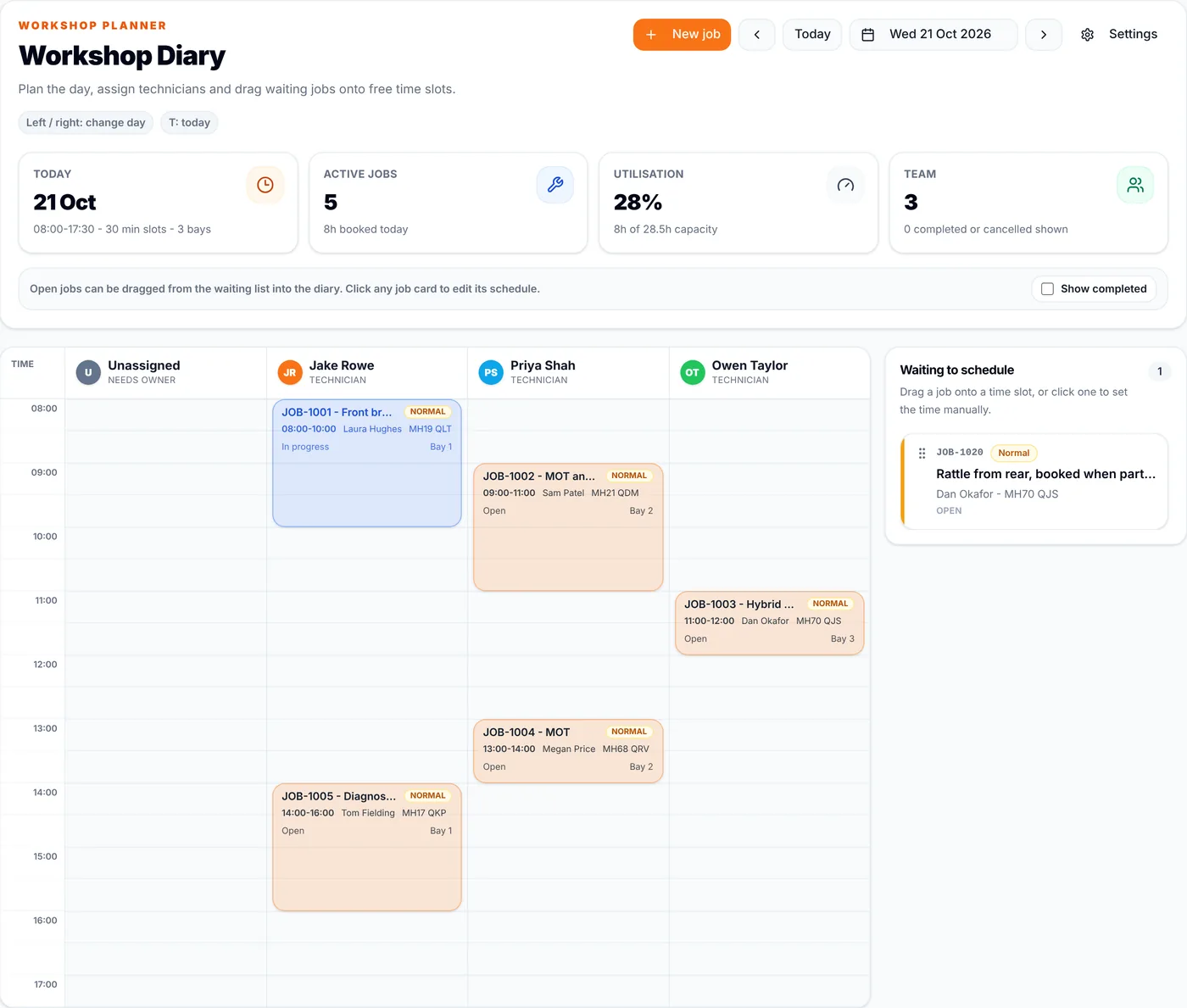
The diary shows one day at a time, with a column for each technician and one for unassigned work. Each booked job shows its time, customer, registration, bay and status, so the whole team can see the plan at a glance. Use the arrows to move between days, or press T to jump back to today.
Across the top you see the day's opening hours and bays, how many jobs are active, how full the workshop is and how many technicians are working.
In Business Settings, the Diary Settings tab holds your opening and closing times, working days, slot length, default job length and number of bays. Keep them current and the diary reflects your real capacity. Your garage website's opening hours use the same settings.
Utilisation is booked hours against capacity. A three-bay workshop open 08:00 to 17:30 has 28.5 bay hours a day, so 8 hours of booked work is 28%.
Jobs that don't have a time yet sit in the Waiting to schedule list beside the diary, so they don't get forgotten. Drag one onto a free slot, or click it to set the time yourself. Click any job card in the diary to edit its schedule.
Add each technician with their name and, if you like, initials and a colour, which show against their jobs. Technicians aren't user accounts, so there's nothing for them to log in to, and the Workshop plan has no limit on how many you add. On the Jobs list you can filter to one technician's work.
If your garage website is live, customers' booking requests appear under Jobs, then Online Bookings. Accept a request to put it in the diary, or decline it. The customer is emailed either way.
Useful next steps
How to book, move and assign jobs in the workshop diary.
Open → GuideWhat happens once a booked job is opened on the ramp.
Open → GuideScheduling and workflow without enterprise complexity.
Open → Free toolTry a simple job card before moving the workflow into Mechanics Hub.
Open →Connected features
Replace paper job cards with a connected workshop record.
Track parts, oil, labour and invoice usage without spreadsheets.
Bring customers back before MOT and service dates are missed.
Create branded invoices from jobs, parts and labour without retyping the work.
Run the workshop in Mechanics Hub and keep Xero as your accounts ledger, without retyping invoices.
Digital red, amber and green checks with photos, attached to the vehicle and easy to share with the customer.
FAQ
Garage scheduling software is a workshop diary that shows booked jobs by bay, time and technician, linked to the customer and vehicle, so the whole team can see the day and avoid double-booking.
Yes. You set up your bays and technicians, then each booked job can be placed in a bay and assigned to the technician doing the work.
Yes. There are no device or session limits, and the Workshop plan includes unlimited technicians at £49 a month or £490 a year.
They wait in an unscheduled tray so they aren't forgotten, and you can drop them into a slot when one frees up.
Booked hours divided by the hours your bays are open. Three bays open from 08:00 to 17:30 give 28.5 bay hours, so 8 hours of booked work is 28% utilisation.
Customers can send booking requests through your garage website. They appear under Jobs, then Online Bookings, and you accept or decline each one. Accepted requests go into the diary, and the customer is emailed either way.
Try the full workflow
Add a customer, link a vehicle, create a job sheet, use stock or labour, send updates and build the invoice from the same record.